Get started with ClipAction.
Install the extension, set your keyboard shortcut, and choose a default AI provider.
Add ClipAction to Chrome.
Three permissions: access the active tab when you trigger the shortcut, store your settings and prompts locally, and inject the command palette into the page.
Reads the text you have highlighted on the active tab, only after you press the shortcut. ClipAction has no access until you trigger it.
Inserts the AI result back into the same input or textarea you selected from. Press Ctrl+Z to revert if it is not what you wanted.
In read-only surfaces like PDFs and Google Docs, ClipAction reads what you copied and writes the result back so you can paste it.
Stores your actions, prompts, and history in Chrome local storage. Nothing syncs to our servers, ever.
Optional: if you connect Ollama, Chrome will ask you separately for access to localhost:11434. Cloud providers like OpenAI and Anthropic do not need any extra Chrome permission, since they use standard HTTPS.
Our Privacy Guarantee
ClipAction is local-first. No analytics, no browsing history tracking, no data selling. Every permission is technically necessary for the product to work.
Pick where your text gets processed.
Three options, mix and match. Set a default in the extension, override per action whenever you want.
Gemini Nano
Built into Chrome, runs on your device. Default if you do nothing.
Chrome 127+ required One-time ~22 GB model download No API key, no cost
Most Chrome installs need to enable two flags first. Five-minute setup, walkthrough below.
Ollama
Run open-source models like Llama or Qwen on your own machine.
Any Ollama-supported model Talks to localhost:11434 Optional Chrome permission, asked at connect time
Install Ollama, pull a model (ollama pull llama3), then enable the Ollama provider in the extension settings.
Bring your own key
OpenAI, Anthropic, Google, Groq, Mistral, xAI, Together, OpenRouter.
Use your own API key Billed direct by the provider Keys stored in chrome.storage.local
Open the extension settings, paste your API key into the provider you want, hit Test, then set it as your default.
Chrome ships Nano behind two flags. Enable them, restart, and the model downloads in the background.
- Open a new tab and navigate to
chrome://flags. - Search for "Prompt API for Gemini Nano" and set it to Enabled.
- Search for "Enables optimization guide on device" and set it to Enabled BypassPerfRequirement.
- Click Relaunch at the bottom of the page.
- After restart, open
chrome://components. - Find Optimization Guide On Device Model and click Check for update. The version should change from
0.0.0.0to something like2024.x.x.x. - Wait for the download to complete (5–20 minutes depending on connection).
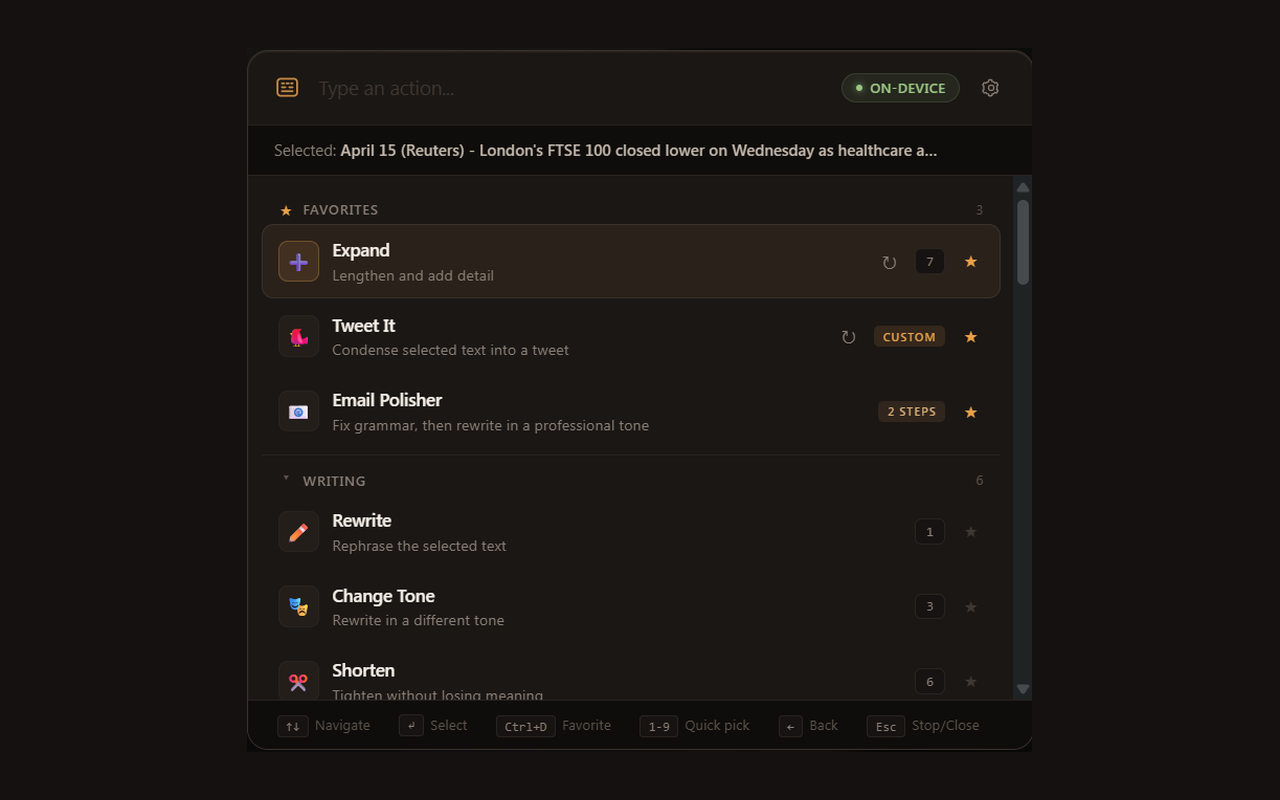
Once the component version is non-zero, open ClipAction and the provider badge will show ● On-device. If it doesn't, the FAQ has full troubleshooting.
Mix-and-match: keep Nano as your default for quick rewrites and grammar fixes, set Claude or GPT-4o as the override for long-form work. The popup badge always tells you which one ran.
Select text, press the shortcut, done.
The whole flow is three keystrokes. Try a built-in to see it work, then build your own when you have a prompt you keep typing.
Default shortcut
Rebind it at chrome://extensions/shortcuts if it clashes with anything you already use.
Use a built-in
Built-in actions and chains covering rewrite, summarize, translate, fix grammar, change tone, extract action items, and more.
Try: select a paragraph, hit the shortcut, type summarize, press Enter.
Build a custom action
Write a prompt once with {{selection}}, save it, bind it to a key. Triggers on any selection from then on.
Settings → Actions → New action. Each gets its own optional shortcut.
Stack a chain
Run actions in sequence. Fix grammar → Make formal in one keystroke. 7 chains built in, more on Pro.
Settings → Chains. Drag actions in the order you want them executed.